Description
Calendar plugin for Joplin
Additional Information
| Links: | |
|---|---|
| Maintainers: | volodymyroliinyk |
| Version: | 1.7.2 |
| Minimum app version: | 3.3 |
| Downloads: This version: | 482 |
| Last updated: | 2026-06-13T21:32:30Z |
🗓️ My Calendar for Joplin




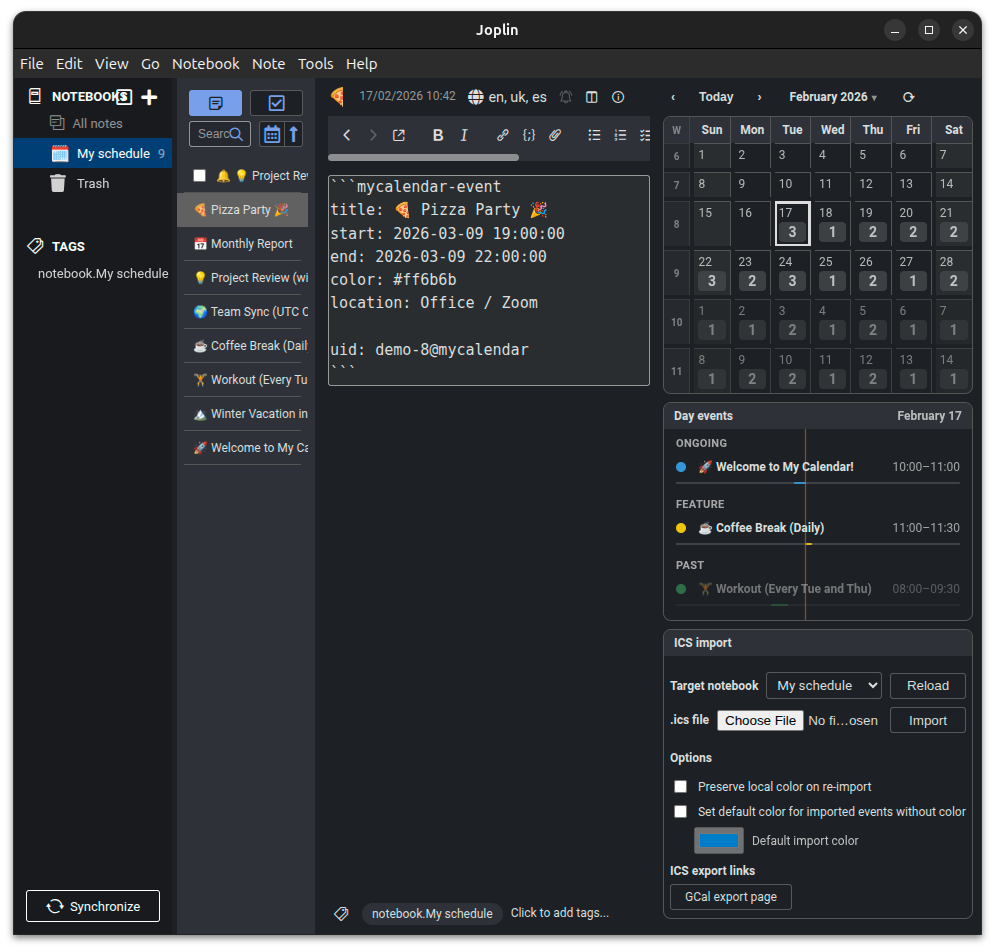
My Calendar is a powerful, flexible, and privacy-focused calendar plugin for Joplin. It turns your notes into calendar events, providing a unified view of your schedule directly within your favorite note-taking app.
| Light Mode | Dark Mode |
|---|---|
 |
 |
🌟 Key Features
- Integrated Monthly Calendar:
- Visual Grid: View your schedule with event bars and alarm indicators.
- Navigation: Quick jump to any date via the month/year picker.
- Quick Recovery: Use
⟳in the toolbar to clear cached events and instantly refresh the month.- Customization: Toggle week numbers and choose Monday or Sunday start.
- Smart Day View:
- Detailed Timeline: See a chronological list of the day's events with a current time indicator.
- Grouped Mode: Optional grouping into Ongoing / Feature / Past with dynamic reclassification.
- Interactive: Click events to open the corresponding note.
- Notes as Events:
- Simple Syntax: Turn any note into an event by adding a metadata block.
- Rich Details: Support for timezones, locations, custom colors, and recurrence.
- In-Panel Event Creation:
- Guided Form: Create event notes directly from the My Calendar panel without writing the event block by hand.
- Full Event Details: Set notebook, title, date/time, timezone, all-day mode, color, location, description, recurrence, excluded dates, and Joplin tags.
- Robust ICS Import:
- Broad Compatibility: Import
.icsfiles from Google Calendar, Outlook, Apple, etc. - Preserved calendar metadata: Keeps recurring rules, excluded and modified occurrences, all-day dates,
IANA timezones, alarms, and source event identity.
- Smart Sync: Deduplicates events and preserves local changes like custom colors.
- Broad Compatibility: Import
- Native Alarms:
- System Notifications: Automatically converts calendar alarms into Joplin "Todo" notes, triggering native reminders on Desktop and Mobile.
- Security & Privacy:
- Sanitized: Protection against malicious Markdown/CSS.
- Local: Works with Joplin's existing sync; no external servers required.
📱 Platform Availability
While we strive for parity, some features are specific to the Desktop version due to platform-specific APIs.
| Feature | Desktop | Mobile |
|---|---|---|
| Monthly Calendar Grid | ✅ | ✅ |
| Smart Day View | ✅ | ✅ |
| In-panel Event Creation | ✅ | ✅ |
| Native Joplin Settings | ✅ | ✅ |
| ICS File Import | ✅ | ❌ |
| Scheduled ICS Import from URLs | ✅ | ❌ |
| Quick ICS Export Links | ✅ | ❌ |
| Markdown Sanitization | ✅ | ✅ |
| Automatic Alarms (Todo generation) | ✅ | ✅* |
*Note: Alarms are generated/synced during the import process on Desktop. Once created as "Todo" notes, they will sync and trigger notifications on Mobile automatically.
🚀 Getting Started
1. Installation
- Open Joplin Desktop.
- Go to
Tools>Options(Windows/Linux) orJoplin>Settings(macOS). - Select
Pluginsand search forMy Calendar. - Click Install and restart Joplin.
2. Create an Event from the Calendar Panel
The fastest way to add an event is the Add event note form in the My Calendar panel:
- Open the My Calendar panel.
- In Add event note, choose the target notebook.
- Fill in the event details: title, date/time, timezone, color, location, description, recurrence, and optional tags.
- Click Create.
The plugin creates a regular Joplin note containing a mycalendar-event block, attaches the selected Joplin tags, opens
the new note, and refreshes the calendar view.
The form supports:
- All-day and timed events with separate date and time controls.
- IANA timezones, auto-populated from your device when available.
- 12h/24h time labels based on the plugin time-format setting.
- Recurring events: daily, weekly, monthly, and yearly, with interval, repeat-until date, weekday selection, monthly day, and excluded dates.
- Searchable tag selection for attaching existing Joplin tags to the created note.
- Inline validation before the note is created.
3. Manual Event Creation
You can also create or edit event notes manually. Simply add the following block to any note:
```mycalendar-event
title: Meeting with Team
start: 2026-02-04 10:00+02:00
end: 2026-02-04 11:30+02:00
color: #3498db
location: Conference Room B
```
The note will immediately appear on your calendar!
💡 Looking for more? Check the examples folder for more templates, including recurring events and all-day appointments.
📥 ICS Import System
The plugin features a robust import system designed for performance and reliability.
How to Import:
- Open the My Calendar panel.
- Select the Target Notebook where you want your events to be stored.
- Choose your
*.icsfile and click Import.
Smart Features:
- Deduplication: The plugin uses
UIDs from the ICS file. If you import the same file again, it will only update changed events or skip unchanged ones. - Scheduled URL Import (Desktop): You can configure one or more HTTPS ICS + notebook pairs and let the plugin
re-import them automatically on a fixed interval. The recommended format is
https://...ics | Notebook Title ;; https://...ics | Another Notebook:;;separates pairs, and|separates the URL from the notebook title. - Local Color Preservation: By default, if you manually change the color of an imported event in Joplin, subsequent imports will preserve your custom color.
- Optimized Automatic Alarms: If an ICS event has a reminder, the plugin creates a linked "Todo" note in Joplin. These todos appear in your standard Joplin tasks and trigger native notifications. The sync process is smart: it only deletes outdated alarms and creates new ones, minimizing sync traffic.
- Improved Format Compatibility: Handles folded ICS lines, multiline descriptions, and escaped values more reliably.
🛠️ Advanced Syntax
Below is the full list of properties supported inside the ```mycalendar-event block:
| Property | Status | Description | Example |
|---|---|---|---|
start |
Required | Start date and time. Mandatory for the event to appear. | 2025-12-18 10:00+02:00 |
title |
Optional | Display name. If omitted, the Joplin note title will be used. | Meeting |
end |
Optional | End date and time. If omitted, the event is treated as a point in time (0 duration). | 2025-12-18 11:30+02:00 |
tz |
Optional | Timezone (IANA). | America/Toronto |
color |
Optional | Hex color for the event bar. | #e74c3c |
location |
Optional | Location string. | Home Office |
description |
Optional | Extra details (auto-sanitized). | Check project status. |
repeat |
Optional | daily, weekly, monthly, yearly |
weekly |
repeat_interval |
Optional | Frequency (e.g., every 2 weeks). | 2 |
repeat_until |
Optional | End date for recurrence (e.g., wrap up series). | 2026-12-31 |
byweekday |
Optional | Specific days for weekly repeat. | MO,WE,FR |
bymonthday |
Optional | Day of the month for monthly repeat. | 15 |
all_day |
Optional | Set to true for all-day events. |
true |
🕒 Supported Time & Timezone Formats
The calendar supports several ways to specify the time and timezone of your events:
-
With UTC Offset (Recommended) Explicitly define the time and its relation to UTC. This time will be automatically converted to your current device's timezone.
start: 2026-02-04 10:00+02:00 -
With
tzProperty (IANA) Specify the time and the exact IANA Timezone name. The plugin will handle the conversion based on daylight saving rules.start: 2026-02-04 10:00 tz: America/Toronto -
Floating Local Time If no offset or
tzis provided, the time is considered "floating" and will be shown exactly as written, regardless of the device's timezone settings.start: 2026-02-04 10:00
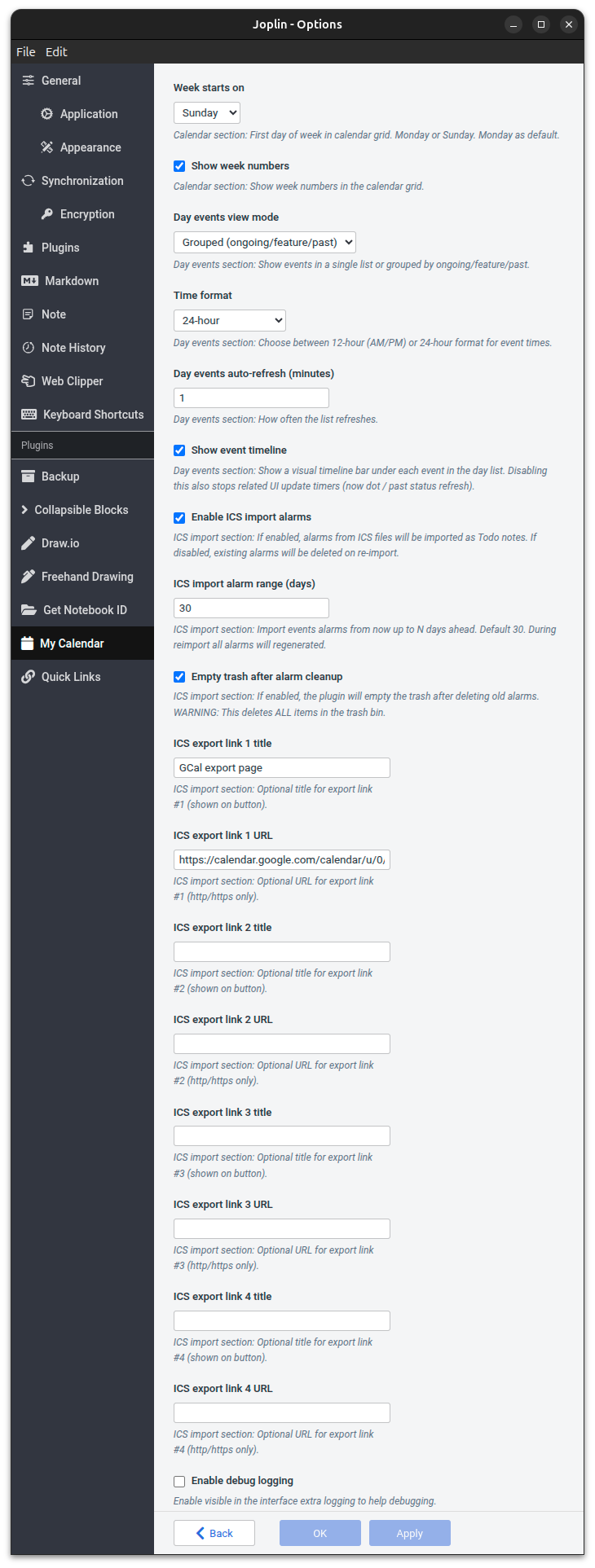
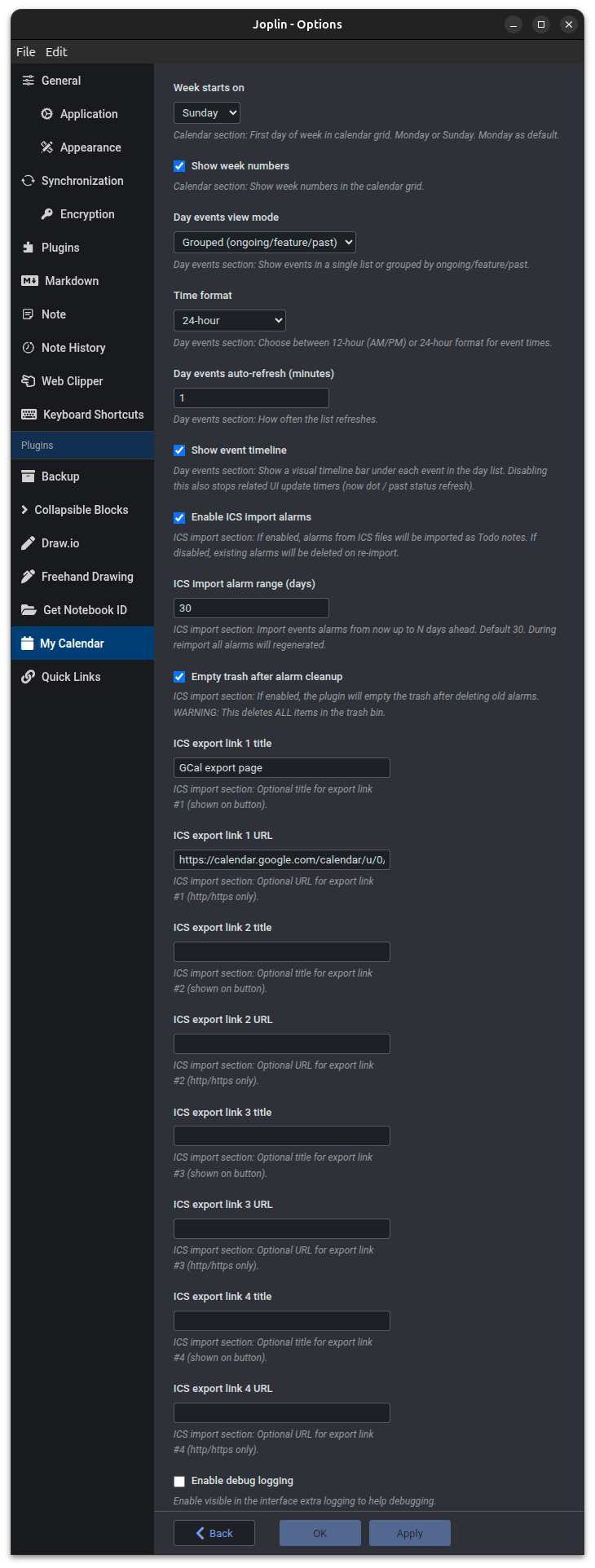
⚙️ Settings
Customize your experience in the Joplin Settings (Tools > Options > My Calendar):
Calendar
- Week starts on: Choose between Monday (default) or Sunday for the calendar grid.
- Show week numbers: Toggle the display of week numbers alongside the calendar grid. (Default: Disabled).
Day events
- Day events view mode: Show events as one list, or grouped into Ongoing / Feature / Past with auto-moves as time changes. (Default: Single list).
- Time format: Choose between 24h (default) or 12h (AM/PM) format for event times.
- Day events auto-refresh: Set the interval (in minutes) for how often the day's event list updates. (Default: 1 min).
- Completed Joplin todos: If a note-backed event is a completed Joplin todo, it is dimmed like a past event and shows a gray checked checkbox icon.
- Show event timeline: Show a visual timeline bar under each event in the day list. Disabling this also stops related UI update timers. (Default: Enabled).
- Current timeline line color - light mode (hex) and Current timeline line color - dark mode (hex): Optional
custom colors for the current-time line in the day event timeline. Leave empty to use the built-in contrast defaults:
#e65100for light mode and#ffd166for dark mode. - Default event color - light mode (hex) and Default event color - dark mode (hex): Optional default colors for
imported events without
X-COLOR, the event creation form, and "Day events" section events without a color. Leave empty to use the built-in contrast defaults:#007c7cfor light mode and#00e5e5for dark mode. - Color settings accept
#RGBor#RRGGBBvalues and are normalized to lowercase.
ICS Import (Desktop only)
- Enable ICS import alarms: If enabled, alarms from ICS files will be imported as Todo notes. If disabled, existing alarms will be deleted on re-import. (Default: Disabled).
- ICS import alarm range: Define how many days into the future (up to 365) the plugin should scan and generate native Joplin reminders from your ICS files. (Default: 30 days).
- ICS reminder emoji: Choose the emoji or short prefix shown at the start of imported reminder note titles.
(Default:
🔔). - Scheduled ICS import pairs: Add pairs in the form
https://...ics | Notebook Title ;; https://...ics | Another Notebook. Each valid HTTPS ICS link is imported into its own existing notebook. If the notebook title is missing, invalid, not found, or ambiguous, that pair is skipped. - Scheduled ICS import interval: Choose how often scheduled URL imports run in the background. Allowed range: 5-1440 minutes. (Default: 60 minutes). The first automatic import waits for one complete interval after startup to avoid unnecessary requests during plugin or Joplin restarts.
- Run scheduled import manually: On desktop, use the
⇩toolbar button beside Clear events cache to import all configured scheduled ICS pairs immediately. The button is disabled while the import cycle is running. - ICS export links: Add as many quick-access links as you need to your favorite calendar exporters (e.g., Google Calendar Export URL). These will appear as convenient buttons in the import panel.
Developer
- Enable debug logging: Activates a visible log box and extra console output to help troubleshoot any issues.
Settings Interface
| Light Theme | Dark Theme |
|---|---|
 |
 |
👨💻 Development
Commands
npm run build: Compile the project.npm pack: Create the.jpldistribution file.npm run pre-pack: Run the pre-pack validation flow using the stable single-process Jest command before packaging.npm test: Run the extensive test suite (350+ cases). This now performs Jest process cleanup first and retries once in--runInBandif a worker crashes withSIGSEGV.npm run test:stable: Run Jest in a single process from the start, with cleanup first. Use this for the most stable pre-release check.npm run lint: Check code style and common patterns.bash ./scripts/cleanup-jest.sh: Kill stale Jest worker processes for this repository before rerunning tests.
Automation Scripts
The project includes helper scripts in the scripts/ directory to streamline development and release processes.
scripts/pre-pack.sh
Ensures code quality before packaging. By default it runs the linter (failing on warnings), the full test suite, and
then creates the package. The test step uses npm run test:stable so packaging does not depend on parallel Jest
workers. Security fixes via npm audit fix --force are optional and must be enabled explicitly.
npm run pre-pack
To include forced audit fixes before validation:
npm run pre-pack -- --audit-fix
scripts/cleanup-jest.sh
Finds and terminates stale jest, jest-worker, and processChild.js processes whose working directory belongs to
this repository. This is useful when a previous Jest run leaves worker processes behind after a crash.
bash ./scripts/cleanup-jest.sh
scripts/run-tests.sh
Wrapper used by npm test. It runs scripts/cleanup-jest.sh, starts the normal parallel Jest run, and if Jest reports
that a worker died with signal=SIGSEGV, it performs cleanup again and retries once with --runInBand.
For a fully serial run without the initial parallel attempt, use:
npm run test:stable
scripts/release.sh
Automates the entire release workflow: bumps version, syncs manifest, tags, pushes, and publishes to NPM.
bash ./scripts/release.sh [patch|minor|major];
scripts/update-demo-ics.py
Automatically shifts dates in the demo ICS file to start from today. Useful for refreshing screenshots.
./scripts/update-demo-ics.py;
scripts/check-tests.sh
Verifies that tests have passed recently (within the last hour) before allowing critical operations.
bash ./scripts/check-tests.sh;
scripts/preview-changelog.sh
Previews the changelog generation in dry-run mode without modifying files.
bash ./scripts/preview-changelog.sh [patch|minor|major];
Development Workflow
For a detailed guide on branch naming, commit message formats, and the release process, please see the * *Development Workflow Guide**.
Security First:
The code implements strict sanitization to ensure that imported calendar data cannot execute arbitrary Markdown or break the Joplin interface.
❤️ Support
If you find this plugin useful, please consider supporting its development. Your donations help me dedicate more time to maintaining the project and adding new features.
- Donate via PayPal - support the development of My Calendar.
Every coffee counts. Thank you! ☕
📜 Changelog
Detailed changes for each release are documented in the CHANGELOG.
📄 License
Copyright (c) 2024-2026 Volodymyr Oliinyk. Licensed under the MIT License. See the LICENSE file for details.